

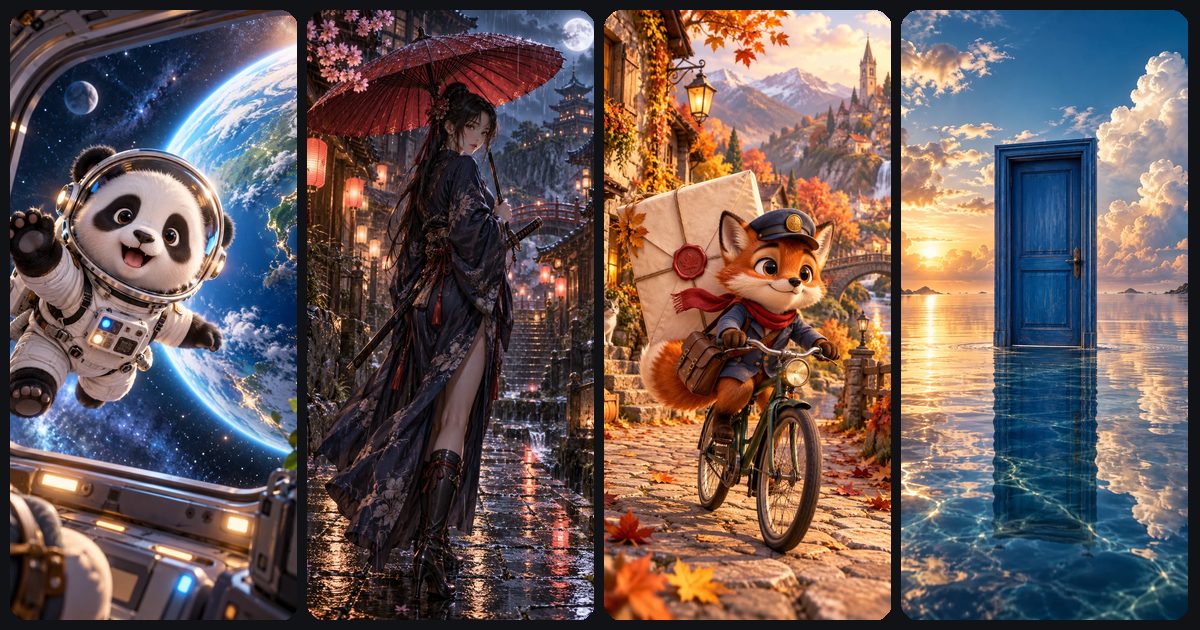
To animate a photo with AI, upload a sharp, well-framed image to an image-to-video model, choose an aspect ratio and clip length, and write a prompt that describes only the motion you want, not what's already in the picture. The model uses your photo as the first frame and generates 4 to 10 seconds of movement from it.
The prompt is where most people go wrong, so this guide spends the most time there: a motion-only formula and 12 copy-paste image to video AI prompts. You'll also learn how to choose and crop the first frame, the exact steps in ToonlyAI, and how to fix warped faces, melting hands and drifting backgrounds.
How image to video differs from text to video
In text to video, the model invents everything: the character, the setting, the lighting and the motion. In image to video, your picture has already answered most of those questions. The subject, background, colours and style are fixed, so the prompt's only job is to say what moves and how.
That makes image to video the better choice whenever the look matters: a real person or pet, a product that must look like the product, a cartoon character you want to reuse, or an old family photo. It's also the most reliable way to keep a character identical from clip to clip, because every clip starts from the same frame.
Choose or create the first frame
Your first frame sets the ceiling for the whole clip. Google's Veo best practices put it simply: use a high-quality source image, because it sets the subject, lighting and style, and a sharp, well-composed image gives more coherent video. You have three ways to get one.
- Use your own photo. Portraits, pets, products and travel shots all work if the subject is in focus and clearly separated from the background.
- Generate one. Create the still you want with an AI image generator, refine it, then animate it. Stills are cheaper to iterate on: a photo costs 10 stars on ToonlyAI, while video clips start at 15.
- Restyle a photo. Turn a real photo into a cartoon, anime or 3D character first, then animate the result (more on this below).
Pick images with room to move. A person mid-gesture, a dog with its ears up or a cup with steam already rising all suggest motion. A tightly cropped face against a blank wall gives the model little to work with. Avoid these as first frames:
- Group shots with many small faces, which are more likely to distort once they move.
- Hands that are tangled, holding thin objects or partly out of frame.
- Visible text, signs or logos, which can smear as the frame moves.
- Motion blur, heavy compression or filters that hide detail.
- Heads or bodies cut off at the frame edge, which forces the model to invent the missing part as soon as anything moves.
Prep the photo: crop, aspect ratio and resolution
Crop the photo to your target aspect ratio before you upload it. If you upload a landscape photo and ask for a vertical video, part of the picture has to be cut away or invented, and you won't control which part. Cropping it yourself keeps that decision in your hands.
| Where it's going | Aspect ratio | Crop tip | Models on ToonlyAI |
|---|---|---|---|
| TikTok, Reels, Shorts | 9:16 | Centre the subject with headroom; keep key details away from the bottom and right edges, where app buttons and captions sit | Veo 3.1 Lite, Veo 3.1 Fast, Kling 3.0 |
| YouTube, websites | 16:9 | Leave space on the side the subject will move or look toward | Veo 3.1 Lite, Veo 3.1 Fast, Kling 3.0 |
| Square feed posts | 1:1 | Centre the subject with an even margin | Kling 3.0 only |
- Subject size. Frame portraits from mid-chest up with space above the head. For full-body shots, leave room for arms and legs to move without leaving the frame. Let a product fill a good part of the frame so it stays crisp at 720p.
- Resolution. ToonlyAI outputs 720p on Veo 3.1 Lite and Kling 3.0, and 1080p on Veo 3.1 Fast. Upload an image at least that large (1080 × 1920 pixels is ideal for vertical) and avoid screenshots of screenshots.
- Old photos. Scan prints flat at high resolution rather than photographing them at an angle, crop away the border, and repair obvious scratches first. Damage in the source gets animated along with everything else.
Write a motion-only prompt (formula + 12 examples)
The core of Google's image-to-video advice for Veo is simple: prompt for motion only. Don't re-describe the character, background or lighting already in the image. Refer to people with general terms such as “the subject”, “the woman” or “he”, and direct three kinds of movement, alone or combined: camera motion, subject animation and environmental motion (Google Cloud).
Re-describing the picture gives the model two references that can disagree. If your prompt says “red hair and a blue dress” but the photo shows auburn hair and a navy dress, the model has to choose. Describing only motion leaves the look to the image, where it belongs.
[Camera motion]. [What the subject does: one or two small actions]. [What moves in the environment]. [Pace and mood]. [What stays still].
Two habits make the formula work. Keep motion small and specific: “turns her head toward the camera and smiles” beats “comes to life”. And use one main camera move: Kling's camera guide recommends a single move per shot, tied to the subject, without contradictory combinations. A static camera is a fine choice when the subject's motion is the point.
Portraits and selfies
Static camera. The subject blinks, takes a slow breath and breaks into a warm smile, then glances toward the camera. A light breeze moves a few strands of hair. Calm, natural pace. The background stays still.
Slow push-in toward the subject's face. She turns her head slightly toward the light and her eyes follow something off-screen to the left. Soft shadows drift across the wall behind her. Quiet, reflective mood.
Pets
Static camera at eye level. The dog tilts its head to one side, ears lifting, then wags its tail twice. Grass sways gently in the breeze. Playful, curious mood.
Slow pull back. The cat stretches its front paws forward, yawns widely and settles back down, tail curling around its body. Sunlight flickers softly across the floor. Lazy afternoon pace.
Products
Slow orbit around the product, a quarter turn from left to right. Light glides across its surface and catches the edges. The product itself stays perfectly still and unchanged. Clean, premium mood.
Static close-up. Condensation droplets slide down the glass, the ice cubes shift and settle, and bubbles rise steadily. A thin wisp of cold mist drifts from the rim. Crisp, refreshing mood.
Landscapes and travel
Slow aerial push forward over the scene. Clouds drift across the sky, light ripples on the water and the trees sway gently. The golden light slowly brightens. Peaceful, expansive mood.
Static camera. Time-lapse: people and cars stream through the street, clouds race overhead and shop lights flicker on as evening falls. The buildings stay perfectly still.
Cartoon characters
Static camera. The character bounces lightly on the spot, waves at the camera with one hand and gives a big grin, eyes squinting with joy. Bouncy cartoon timing. The background stays still.
Quick push-in on the character's face. Their eyes go wide and their eyebrows shoot up, then they burst out laughing and rock back on their heels. Exaggerated, comedic timing.
Old family photos
Static camera. The subject blinks slowly and gives a small, gentle smile, with a slight natural movement of the head. Very slow, calm pace. Nothing else in the photo moves.
Very slow push-in with a gentle parallax effect, as if the camera drifts into the photo. The people stay almost still, with soft blinks and a slight breeze in their hair. Warm, nostalgic mood.
When you animate old photos with AI, less is more. A blink, a breath or a small smile reads as natural. A big head turn asks the model to invent angles of a face that were never photographed, which is where likeness slips.
Crop a photo to 9:16, upload it to Image to Video and paste one of the prompts above. A silent 4-second Veo 3.1 Lite test costs 15 stars, so you can check the motion before paying for a 1080p version.
Animate a photoStep by step: turn a picture into a video with AI in ToonlyAI
- Open the Video Studio and choose Image to Video.
- Upload your cropped image.
- Pick a model: Veo 3.1 Lite for cheap tests, Veo 3.1 Fast for a 1080p final, or Kling 3.0 for 10-second clips, square video or smooth, expressive motion.
- Match the aspect ratio to your crop and choose a length. Subtle motion often suits 4 to 6 seconds; a camera move plus an action needs 8 to 10.
- Decide on sound. Switch it on for ambience or a short spoken line (see AI video with sound), or off if you'll add music or a voiceover later. Silent is cheaper on every model.
- Write your motion-only prompt and check the star cost shown before you generate.
- Generate. Clips usually take one to three minutes.
- Review, change one thing if needed, and download the MP4.
Clips cost from 15 stars (a silent 4-second Veo 3.1 Lite clip) to 155 stars (a 10-second Kling 3.0 clip with sound), and failed generations are refunded automatically. For a side-by-side look at the models, see Veo 3.1 vs Kling 3.0.
Cartoonify first, then animate
To make a cartoon picture move, or turn a real photo into an animated character, work in two steps. First restyle the photo with an AI photo tool: our guide on how to convert a photo to cartoon with AI covers that step, and the online AI photo style changer guide covers other looks. Then upload the result to Image to Video and add a motion-only prompt.
This route has three advantages. You can perfect the look on a 10-star image before spending stars on video. Stylised characters tend to be more forgiving than photoreal faces, because small shifts in proportion read as animation rather than distortion. And you end up with a reusable character image: start every clip from it and your character stays the same across a series, as explained in consistent characters in AI video.
For example: turn a photo of your dog into a 3D cartoon (10 stars), then animate it with the head-tilt prompt above as a silent 6-second Veo 3.1 Lite clip (25 stars). That's 35 stars, roughly 58 to 88 cents depending on the pack.
Fixing warped faces, hands and drifting backgrounds
Most image-to-video problems come from asking for more motion than the image can support. Here are the usual symptoms and what to try.
| Problem | Likely cause | What to try |
|---|---|---|
| The face warps or becomes someone else | The face is small in the frame, or the motion is big (a full head turn, a belly laugh) | Crop closer, ask for smaller motion, use a shorter clip |
| Hands melt or grow extra fingers | Hands are prominent, tangled or holding thin objects | Crop the hands out, or say the hands stay still |
| The background drifts or bends | Camera, subject and environment all moving at once | Use a static camera and add “the background stays still” |
| Nothing much happens | A vague prompt such as “make it come alive” | Name a concrete action and direction: “turns her head to the left” |
| New people or objects appear | Empty space at the frame edge, or a prompt that implies more scene | Crop tighter and describe only what's already there |
| Text or logos smear | Text in the source image | Remove or crop out text before uploading |
| The camera ignores you or wobbles | Two or more camera moves in the prompt | Keep one main camera move |
Change one variable at a time so you know what fixed it, and state what should stay still in plain, positive terms (“the product stays unchanged”) rather than a list of don'ts. If three or four variations still break the face, the source image is probably the problem: try a closer crop, a sharper photo or a stylised version.
Consent and copyright
A moving image of a real person is more personal than a still, so treat it with the same care as quoting someone. This isn't legal advice, but four rules keep you on safe ground.
- Ask first. Only animate people who have agreed, or whose close family agrees in the case of relatives who have died.
- Don't put words in real people's mouths. YouTube asks creators to disclose realistic altered or synthetic content, including a real person saying or doing something they didn't; clearly animated or unrealistic content doesn't need the label (YouTube Help).
- Use images you have rights to. A photo found online belongs to its photographer, and studios defend their characters: Disney sent ByteDance a cease-and-desist over Seedance 2.0, citing characters such as Spider-Man and Darth Vader (Axios).
- Never make intimate or humiliating content of real people. In the US, the FTC began enforcing the TAKE IT DOWN Act, which covers non-consensual intimate imagery including AI-generated images, in May 2026 (FTC).
Each of the 50 story starters on the homepage pairs a prompt with a concept image, across 10 categories from claymation to sci-fi. Use one for inspiration, then animate your own image.
See story starters