

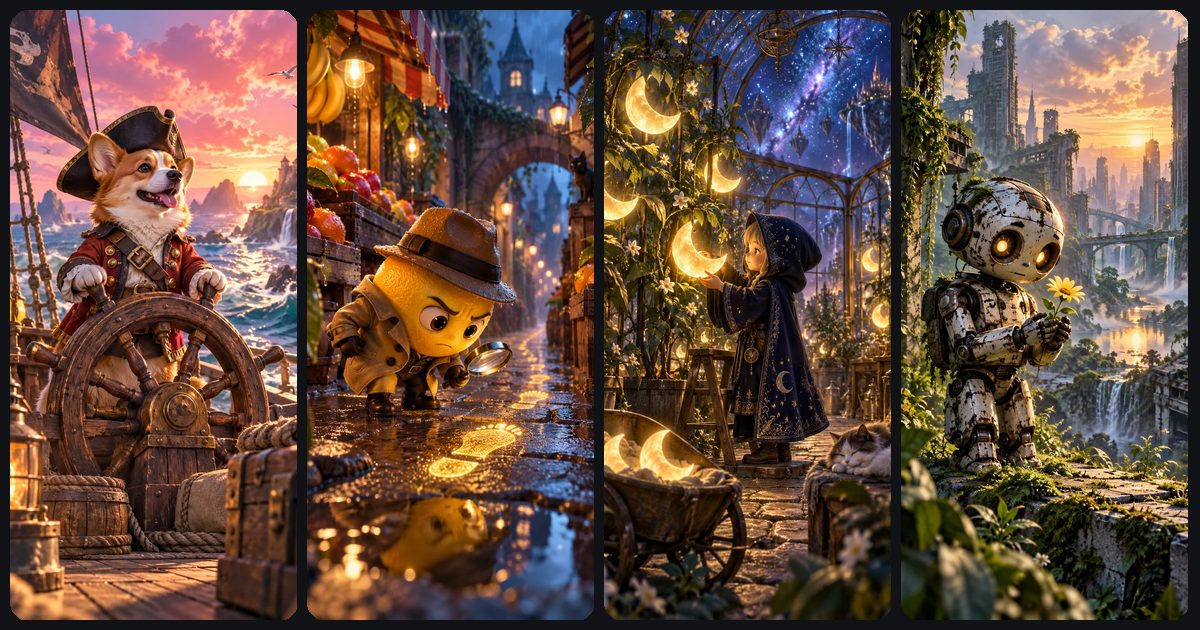
The most reliable way to get a consistent character in AI video is to anchor every clip twice: with a written description you repeat word for word, and with the same reference image used as the first frame. Add a fixed name, a fixed voice description and steady lighting, and one character will carry across a series far better than with a fresh prompt each time.
It won’t be perfect. At the time of writing (October 2026), video models still reinterpret small details between generations, so plan for minor differences and the occasional re-roll. This guide gives you a copyable character sheet, the image-first workflow and fixes for the usual kinds of drift.
Why AI characters change between clips
A video model doesn’t remember your last clip. Each generation starts fresh from the prompt and any image you supply, so whatever you leave unspecified, such as eye colour, the exact shade of a jacket or the shape of a hat, gets reinvented. Rewording your own description does the same: “a small orange fox” and “a little ginger fox cub” are two different requests.
The shot matters too. New lighting, a different lens or a dramatic angle can make the same face read differently, and fast motion or a turn away from the camera gives the model room to improvise. Switching models mid-series changes the rendering style as well.
Google and Kling give the same core advice. Google’s Veo best-practice guide says to name each character, give them a voice style and repeat the full description unchanged in every prompt. Kling’s prompt guide says to keep the character description steady while the scene or camera changes, and to use high-quality reference images when a specific character matters.
Build a character sheet you reuse in every prompt
A character sheet is a short, fixed block of text you paste unchanged into every prompt featuring that character. Keep it tight: three signature features a viewer will notice, a small palette, one outfit, one style line and one voice line. A long list of minor traits just gives the model more things to get slightly wrong.
Name: [short, distinctive name]
Identity: [Name], a [size or age] [species, person or object] with [feature 1], [feature 2] and [feature 3]
Palette: [3 to 5 named colours]
Wardrobe and props: [one fixed outfit, one signature prop]
Style: [render style and lighting, e.g. polished 3D animation, soft warm studio light]
Voice: [pitch, pace, texture, mood]
Never changes: [details that must stay fixed]
Can change: [expression, pose, location, weather]
Then compress the sheet into one identity paragraph: the exact wording you’ll paste. Here is a filled example for a cartoon fox called Miso.
Miso, a small round fox cub with burnt-orange fur, oversized cream ears and a white tip on her tail, wearing a teal knitted scarf and a tiny brass bell on a red collar, polished 3D animation with soft warm studio light. Miso speaks in a soft, high, slightly breathless voice.
- Use a short, distinctive name every time. It keeps multi-character prompts and speaker labels unambiguous.
- Name colours precisely. “Teal knitted scarf” leaves far less to interpretation than “colourful scarf”.
- Pick features that read at phone size. A red collar and big ears survive a medium shot on a phone; freckles and eye flecks often don’t.
- Never paraphrase. Keep the paragraph in a notes file and paste it rather than retyping it.
Use one reference image as the first frame of every clip
Text leaves room for interpretation; an image doesn’t. The most dependable method is image first: create one strong picture of your character, then start every clip from it with image to video.
Some tools accept separate reference images. Google’s Veo 3.1 documentation lists reference (“ingredients”) images for Veo 3.1 and Veo 3.1 Fast, but not for Veo 3.1 Lite, and Kling’s 3.0 user guide describes binding a subject or building an element from two to four reference images on Kling’s own platform. On ToonlyAI, the practical method is Image to Video: upload the same hero image for every clip so it becomes the opening frame.
- Write the character sheet first, so the image and the video prompts describe the same character.
- Create the hero image. Generate it from your identity paragraph with ToonlyAI’s image tools, or turn a photo into a cartoon. A photo costs 10 stars, so making four or five options and keeping the best is cheap.
- Frame it for video. Match the aspect ratio you’ll publish (usually 9:16), show the character clearly from the waist up or full body, and leave space around them to move. Google’s image-to-video advice is to start from a sharp, well-composed image.
- Save it as your master. Keep the file and its prompt together; every future clip starts from this image or from a scene image you’ve checked against it.
- In the Video Studio, choose Image to Video and upload the master. Pick your model, aspect ratio, length and sound, then write a motion prompt.
Need the character somewhere new? Generate a scene image that includes them, compare it side by side with the master, and only animate it if the signature features match. Every new first frame is a new chance for drift. For the upload-and-animate step in detail, see how to animate a photo with AI.
ToonlyAI’s homepage has 50 story starters, each with a prompt and a concept image, across fruit drama, animal stories, clay worlds, talking objects and more. Pick one as the seed for your own recurring character.
Browse story startersWrite prompts that keep the same character in every clip
Text to video: paste the full description
With no image to lean on, the identity paragraph is your only anchor. Paste it unchanged at the start of every prompt, then add the action, setting, camera and sound. Keep the surroundings steady across a series too: the same style line, similar lighting and the same lens language. Hard blue night light will make a face look different from a warm daytime close-up.
Miso, a small round fox cub with burnt-orange fur, oversized cream ears and a white tip on her tail, wearing a teal knitted scarf and a tiny brass bell on a red collar, polished 3D animation with soft warm studio light. Miso speaks in a soft, high, slightly breathless voice. Miso tiptoes across a snowy rooftop at dusk and peeks over the edge, eyes wide. Slow push-in. Miso whispers: I think someone is down there. Sound of wind and a distant bell.
Image to video: describe the motion, not the character
When the hero image is the first frame, the picture already carries the identity. Google’s image-to-video advice is to prompt for motion only and not re-describe the subject, background or lighting, so refer to the character by name or as “the subject”. If sound is on, keep the voice line, because a voice isn’t visible in the image.
Miso tiptoes forward and peeks over the edge of the roof, ears twitching, scarf lifting in the wind. Slow push-in. Miso speaks in a soft, high, slightly breathless voice and whispers: I think someone is down there.
Two habits help in both modes. Use one camera move per shot and keep motion moderate, since a full spin or a long turn away from the camera gives the model room to reinvent the face. And stick to one model for the whole series, because each model renders faces, fur and materials in its own way. More on prompt structure is in our AI video prompts guide.
Keep the voice consistent
Voices drift for the same reason faces do: if you don’t describe the voice, the model picks one. Write a voice line once, covering pitch, pace, texture and mood, and repeat it exactly in every clip with sound. That is why Google’s guidance pairs a voice style with each named character.
Put the speaker’s name right before each line and keep lines short enough for the clip. Kling recommends keeping each speaker’s name, line and delivery together, and Google’s current Veo advice is to write dialogue after a colon rather than in quotation marks, which can produce on-screen text. Describe qualities rather than naming a real actor: “a deep, slow, gravelly voice with a dry tone” is repeatable and doesn’t imitate anyone. More on dialogue is in AI video with sound.
Two consistent characters in one scene
Two characters are harder than one, because the model can blend their features. These rules help:
- Make them contrast. Different sizes, silhouettes and main colours are harder to mix up.
- Give each a full identity paragraph, always in the same order.
- Place them. Say who is on the left and who is on the right, and keep that arrangement across clips.
- Label every line. Kling’s user guide notes that naming each character alongside their dialogue helps match speech to the right one.
- Put both in the first frame when you use image to video.
Miso, a small round fox cub with burnt-orange fur, oversized cream ears and a teal knitted scarf, stands on the left. Bolt, a tall lanky grey raccoon with a striped tail, a yellow raincoat and round black goggles, stands on the right. Polished 3D animation, soft warm light. They share an umbrella on a rainy rooftop at night. Static medium shot. Miso, in a soft, high voice, says: You said it wouldn’t rain. Bolt, in a slow, deep, dry voice, replies: I said probably.
Cartoon, fruit and object characters
Stylised characters give you fewer details to track. A strawberry with a gold crown or a lemon in a detective hat has two or three strong features, which are easy to describe precisely and easy to check from clip to clip.
For fruit, food and object characters, decide where the face sits and describe it identically every time, for example “a face on the front of the mug with round black eyes and a wide smile”. Name the material (glossy, matte, fuzzy, clay), because a change in texture reads as a different character, and fix the style line so one clip doesn’t come out glossy 3D and the next hand-made clay. Our guides to AI fruit drama and talking object videos put these characters into full episodes.
Chain clips with the last frame
For a continuous scene, you can use the final frame of one clip as the first frame of the next. Pause on the last frame in a video player or editor, save it as a full-resolution image, then upload it to Image to Video for the next shot.
- End each clip on a clear pose. Add something like “ends on a still, clear pose facing the camera” so the last frame isn’t blurred mid-motion.
- Check the frame against the master before uploading. If the face has shifted, use the master instead.
- Reset regularly. Each generation can nudge details and chaining passes them forward, so return to the master every few clips.
When the character drifts: quick fixes
| Symptom | Likely cause | Fix |
|---|---|---|
| Face changes between clips | Text to video with a reworded or partial description | Switch to image to video with the master; paste the identity paragraph unchanged |
| Outfit colours shift | Vague colour words, or a scene palette that competes | Name exact colours and keep the setting’s colours from clashing |
| Character morphs mid-clip | Fast motion, spins or turning away | One action, one camera move; try a shorter clip |
| Style flips between 3D and 2D | Changed style line, or a different model | Repeat the exact style line; use one model per series |
| Two characters swap features | Similar designs or unclear positions | Increase contrast, state left and right, describe each separately |
| Voice changes | No voice line, or a reworded one | Repeat the same voice line and label every speaker |
| Extra characters appear | A crowded scene description | State the cast plainly, e.g. “only Miso and Bolt in the scene”, and simplify the background |
Change one variable per re-roll. If you rewrite the prompt, switch the model and swap the image at the same time, you won’t know which change fixed it.
What consistency costs
Consistency takes some re-rolls, so budget for them. On ToonlyAI a hero image costs 10 stars, and clips range from 15 stars (a silent 4-second Veo 3.1 Lite clip) to 155 stars (10 seconds of Kling 3.0 with sound). Failed generations are refunded automatically, but a clip that renders with a drifted face is a normal generation, so it pays to catch problems cheaply.
As an illustrative example, a six-clip episode on Veo 3.1 Lite at 8 seconds with sound costs 300 stars if every clip works first time. If half the clips need one re-roll, that becomes 450 stars, plus 30 to 50 stars for hero image options. The same episode on Kling 3.0 at 5 seconds with sound starts at 480 stars.
To keep re-rolls down, test each new scene image with a short silent clip on the model you’ll use for the series (15 stars on Veo 3.1 Lite, 55 on Kling 3.0) and switch sound on once the look holds. And lock the character sheet and master image before production, not halfway through a series. If you’re still choosing a model, our Veo 3.1 vs Kling 3.0 comparison breaks down the costs.
Create your hero image with ToonlyAI’s photo tools, then animate that same image in the Video Studio for every episode. Pay per clip in stars that never expire, with no subscription.
Try Toonly AI